
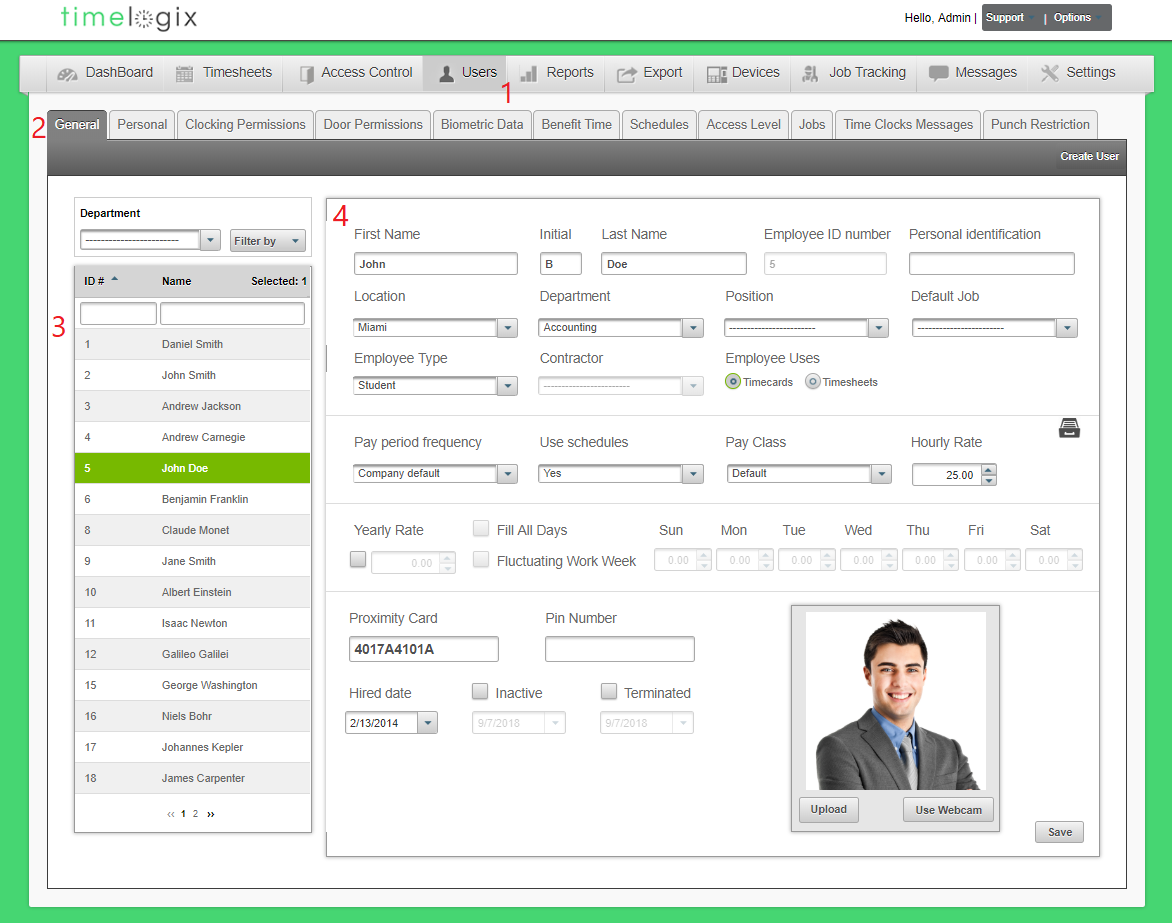
To view or modify an employee's general company information, navigate to:
- Users
- General
- Select the employee
- Employee Data:
- First Name
- Initial
- Last Name
- Employee ID number: Required. This number cannot begin with a "0," contain letters or special characters.
- Personal Identification: Optional field. If your employees have a company ID, but does not follow the accepted formatting for the Employee ID number, you can input here. We can pull this field in an export or in certain reports.
- Location: Choose a home location for the user.
- Department: Choose the Department that the user pertains to.
- Position: Optional. Choose the Position that the user pertains to.
- Default Job: Optional. Typically this is associated with Projects and Jobs.
- Employee Type: Regular, Part-Time, Seasonal or Temporary.
- Contractor: If applicable
- Employee Uses: By default, Timecards will always be selected. For information on Timesheets versus Timecards, please contact our main support line.
- Pay Period Frequency: By default, this is first selected as a company-wide setting under the main account Settings. You can assign a different pay period frequency per user here.
- Use Schedules: Will always be set according to the company default. You can turn it on or off per user here.
- Pay Class: Initially, the user is assigned to the Default pay class. You can change their pay class here if it differs from the default.
- Hourly Rate
- Yearly Rate
- Fill All Days
- Fluctuating Work Week
- Enter the salaried hours per day that the user will be paid for. This will work with the Yearly Rate to break down their pay per period.
- Proximity Card
- Pin Number
- Hired Date
- Inactive: Inactivate the User: Opens a spot for another user on the license.
- Terminated: Terminate the User: Opens a spot for another user on the license.
Comments
0 comments
Please sign in to leave a comment.