
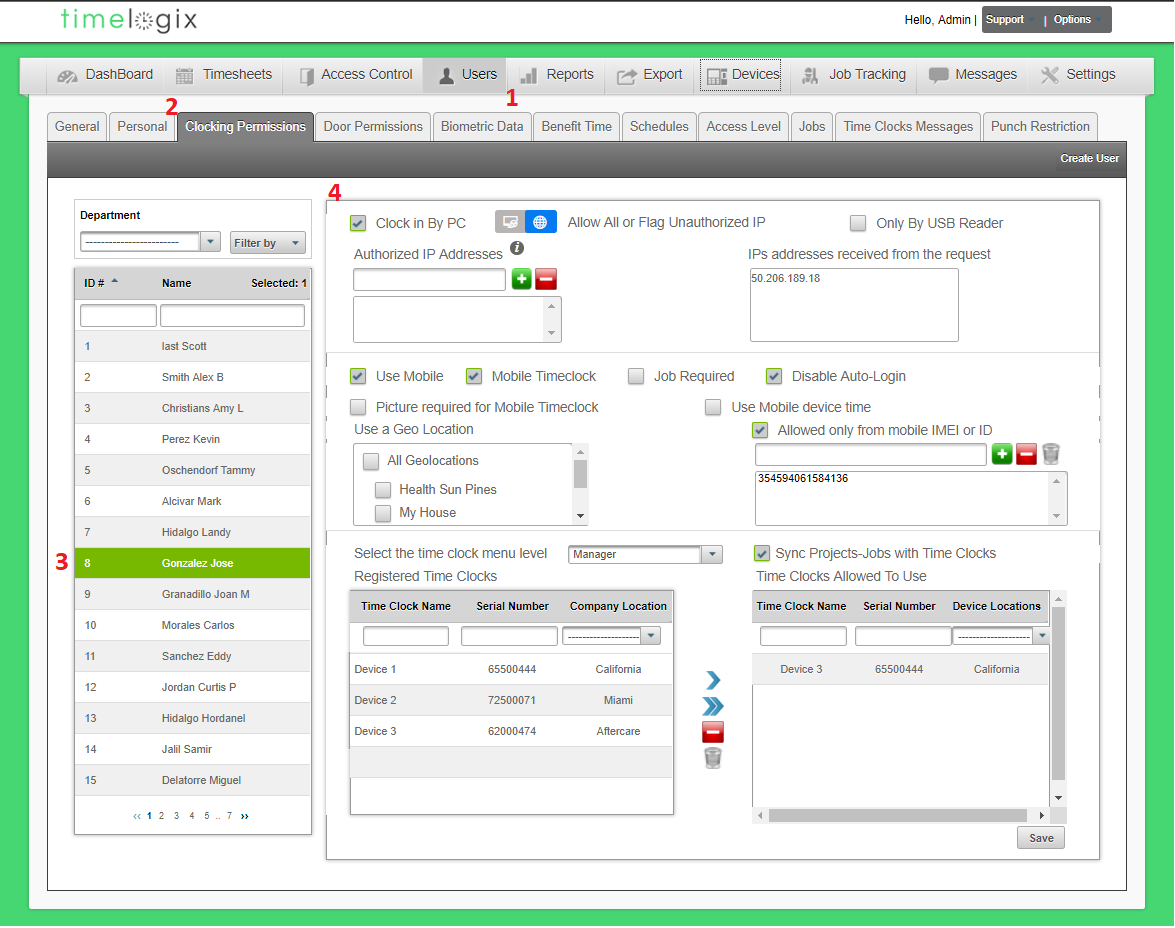
Managers and Administrators can assign the users to specific devices via the Clocking Permissions tab. The Clocking Permissions tab is where you can give the employee access to clock in via a PC, Mobile Application or the Time Clock.
To setup Clocking Permissions for an employee, navigate to:
- Users
- Clocking Permissions
- Select the employee
- Clocking Permission settings:
- Clock in by PC
- Allow only Authorized IP: Only IP address from the authorized list are accepted.
- Allow all OR Flag unauthorized: Allow all IP address, or flag IP addresses outside of an authorized list.
- Only USB reader: Allow Clocking In/Out from USB fingerprint reader.
- Use Mobile: Gives access to the Mobile Application
- Mobile Time clock: Gives access to Clocking In/Out via the Mobile Application
- Job Required: Job selection required when Clocking In/Out of the Mobile Application
- Disable Auto-login: Disabling auto-login to the Mobile Application. This option is always enabled by default.
- Picture Required for Mobile Time clock: Photo ID required when Clocking In/Out of the Mobile Application
- Use Mobile device Time: If users are travelling/clocking in or out across time-zones, the system will automatically pull the device time instead of using the employee's home location time-zone.
- Use a Geo-location: An assigned radius where an employee can clock in/out from. Outside of the radius, the employee cannot clock in or out.
- Allowed only from Mobile IMEI or ID: Deselect this option to allow simultaneous Mobile access from any IMEI. Otherwise, it is selected by default and users will only be able to log into one IMEI (device) at a time.
- Select the Time Clock menu level: Choose from Employee, Manager or Administrator.
- Employee: Cannot access the Time clock menu.
- Manager: Can access parts of the Time clock menu, unless otherwise allowed.
- Administrator: Full access to menu.
- Registered Time Clocks: Devices that are registered to your account.
- Time clocks allowed to use: Devices that the employee is allowed to clock in/out from.
- Clock in by PC
Comments
0 comments
Please sign in to leave a comment.